
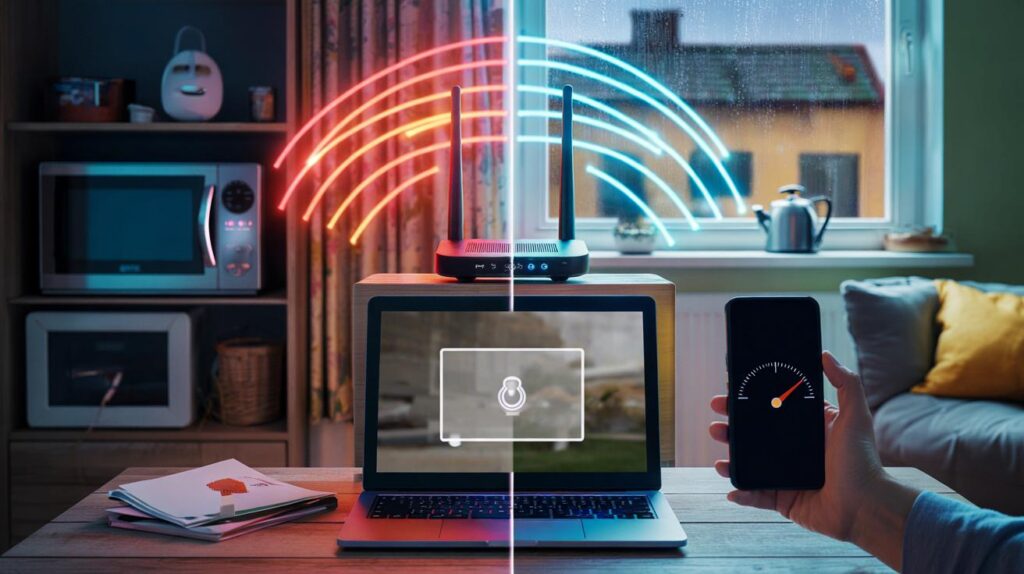
Everyone blames the broadband. Few of us suspect the air between the kettle and the sofa. My little breakthrough? I didn’t switch provider, upgrade my router, or sacrifice a Saturday to tech support. I changed one setting hidden in plain sight — the Wi‑Fi channel — and everything else snapped into focus.
It was a Tuesday, wet and ordinary. I was hunched over a kitchen table that doubles as a desk, watching a cloud doc load one pixel at a time. A Teams call stuttered into slow motion. Somewhere, my neighbour’s telly blared through a shared wall. I ran a speed test and sighed. Then I opened my router’s admin page and nudged the channel from crowded to quiet. The next test blinked back at me, almost twice as fast. I didn’t believe it at first.
The day the air cleared
I’d been living with Wi‑Fi grit in the gears. Pages loaded, but with hesitation. Video calls worked, then got jumpy, then went ghostly. It felt like London traffic at rush hour: lots of green lights, but nowhere to go. The strangest part? Ethernet was fine. This wasn’t the line coming into the flat. It was the invisible lane in my living room, jammed by gadgets shouting over each other.
We’ve all had that moment where the loading spinner stalls and your patience thins. My before-and-after was stark. Pre-change, Speedtest showed 46–52 Mbps down on a fibre plan that usually does 90–100 via cable. After the channel switch, numbers leapt to 92, then 96. Upload nudged up, latency dropped from 28 ms to 14. Same router, same room, same rainy day. The only variable was where, in the spectrum, my Wi‑Fi decided to sit.
Think of Wi‑Fi channels like lanes on a motorway. On 2.4 GHz, most devices default to the same three lanes, and many routers sit on “Auto”, so they pick whatever looks fine at 3am, then never check again. In the UK, 2.4 GHz has 13 channels, but only 1, 6 and 11 avoid messy overlap for most gear. On 5 GHz you get far more lanes, yet some overlap with weather radar and airport gear, which can force your router to hop. Pick the wrong lane at the wrong time, and the whole journey slows to a crawl.
Exactly how I switched channels
Here’s the move. First, I scanned the air. On iPhone, the free AirPort Utility app shows channel use if you enable Wi‑Fi scanning in Settings. On Android, WiFi Analyzer or Fing does the same. On a laptop, NetSpot or the Wireless Diagnostics on a Mac works. I looked for the emptiest channel on 2.4 GHz and the least busy range on 5 GHz. Then I logged into my router: typed 192.168.0.1 or 192.168.1.1 in a browser, signed in, went to Wireless settings, and changed the channel from Auto to something clear. Saved, waited 10 seconds, retested. That was it.
A few bits I learned the awkward way. Pick 1, 6 or 11 on 2.4 GHz in the UK; 13 exists, but some imported devices sulk on it. Keep channel width at 20 MHz on 2.4 GHz to avoid stomping over neighbours. On 5 GHz, try a non-DFS channel first (36–48 or 149–161) for stability, because DFS channels can drop out if they hear radar. Split your 2.4 and 5 GHz networks into separate names if “Smart Connect” is making odd choices. And place the router high, central, and away from microwaves or baby monitors. Let’s be honest: nobody does this every day.
Here’s the part that made the biggest difference for me: testing at two points — next to the router, and in the worst room. Then changing only one thing at a time. After the channel fix, both spots improved, and stayed that way. If you like a north star to follow, stick a note on your phone with your chosen channels and the speed test numbers you got. It helps you spot when the crowd moves in again.
“Wi‑Fi isn’t magic, it’s radio. If you’re slow, first ask who else is talking on your frequency,” a network engineer told me over coffee. It sounded obvious once he said it, and weirdly calming.
- Quick scan: check which channels are crowded before you change anything.
- 2.4 GHz: choose 1, 6 or 11 and set 20 MHz width.
- 5 GHz: prefer channels 36–48 or 149–161 for steady performance.
- Run a speed test before and after, in the same spot, at the same time.
- Write down your winning combo, so you can revert if needed.
The why behind the win
Radio waves share. When too many neighbours pile onto the same channel, your devices take turns like polite drivers at a single-lane bridge. Every turn adds delay. Microwaves leak at 2.4 GHz, older video senders chatter there, even Christmas lights can spray a haze. Shift to a quieter channel and your Wi‑Fi spends less time waiting, more time sending. Your broadband didn’t change. The road to it did.
Speed isn’t just about headline numbers. Channel choice nudges three things: throughput, latency and stability. Throughput is the raw speed, the big number on a speed test. Latency is the gap before something responds, the difference between crisp and laggy calls. Stability is whether the connection stays predictable when the living room fills with phones after dinner. The channel switch cleaned up all three for me. *I changed my Wi‑Fi channel and my internet instantly doubled in speed.* That sentence felt daft to write. It was also true.
There’s a limit to what this trick can do. If your plan is 35 Mbps, you won’t magically hit 500. If your router is ancient, or the walls are thick Victorian pride, there’s only so much spectrum can solve. Still, a five‑minute tweak delivered what a new mesh kit might have promised. If you’ve got Wi‑Fi 6 or 6E, you gain extra lanes on 5 GHz and 6 GHz that are often quieter. And yet, even shiny hardware on a bad channel limps. Change the lane, not the car.
Your turn: a five-minute fix that feels bigger
There’s something satisfying about solving a modern annoyance with a simple move. No new box. No sales call. Just a small change in the air above your floorboards that makes Netflix snap into HD faster and your uploads stop wobbling. If you try this tonight, do a quick scan, pick a clean lane, and test in the corner of your home that usually lets you down. If it works, tell a friend who’s still suffering through dropouts on a busy cul‑de‑sac. And if it doesn’t, you’ve learned a bit about your own radio landscape. The chatty neighbours. The quiet moments. The waves we all share.
| Key points | Details | Interest for reader |
|---|---|---|
| Scanning first beats guessing | Use AirPort Utility, WiFi Analyzer, or laptop tools to spot crowded channels | Quick, free move that guides a better choice |
| Pick sensible channels | 2.4 GHz: 1/6/11 at 20 MHz; 5 GHz: prefer non‑DFS like 36–48 or 149–161 | Fewer clashes, smoother calls and streaming |
| Measure before and after | Speed test near the router and in the worst room, same time of day | See the real‑world gain, not just a hunch |
FAQ :
- What’s the “best” Wi‑Fi channel?There isn’t a universal best. On 2.4 GHz, start with 1, 6 or 11 and pick the least busy in your home. On 5 GHz, try 36–48 or 149–161 for stable performance.
- Will changing channels increase my broadband speed?It won’t change your line speed, but it can unlock more of it over Wi‑Fi by reducing interference. That means higher throughput, lower latency and fewer drops.
- What about Wi‑Fi 6E and 6 GHz?Wi‑Fi 6E adds a new 6 GHz band with clean, wide channels in the UK. If your router and devices support it, you’ll often see big gains in busy flats. Some older devices won’t see that network at all, which is normal.
- Is Auto channel selection good enough?Sometimes. Many routers pick a channel at boot and never recheck when the neighbourhood wakes up. Manually choosing a calmer lane often beats Auto, and you can revisit it every few months.
- Why did my Wi‑Fi get worse at dinner time?That’s when neighbours come home, TVs stream, consoles update and microwaves warm things. Your channel gets crowded. A cleaner channel or moving heavy use to 5 GHz usually helps. **Change the lane, not the car.**



Followed your steps and nudged my 2.4 GHz from Auto to channel 1 (20 MHz); 5 GHz to 36. Latancy dropped from ~30 ms to 12 ms and throughput doubled. Legit game‑changer—thanks!